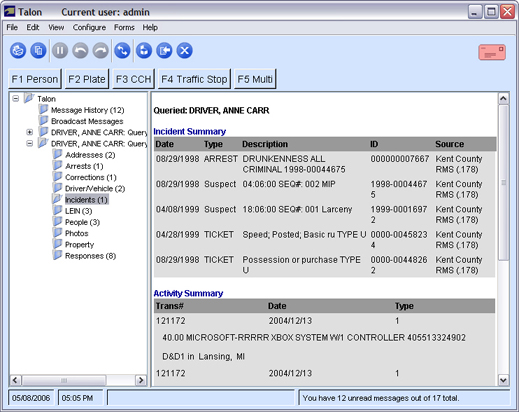
The Case View is another new view introduced in Talon. This view helps investigators organize data into categories of information.
For each query requested, a folder is created on the left hand side of the screen. Any responses for the selected query are organized into folders according to the type of information it contains. For example, an Addresses folder may be created and will list all the addresses returned for a specific person query.
Folders
When working in the Case view, a folder is created for each query you submit. In addition, sub folders are created based on the type of messages received.
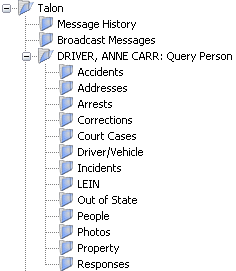
Available Folders
The following describes the different folders in the Case view.
|
Talon |
This is the default case folder. | ||||||||||||||||||||||||||||
|
Message History |
Displays all the messages in the message history table on the right side of the screen. | ||||||||||||||||||||||||||||
|
Broadcast Messages |
Displays any broadcast/administrator messages received.
NOTE: The Broadcast Messages folder will not be displayed unless at least one broadcast message is received. | ||||||||||||||||||||||||||||
|
Query |
Displays a query folder for each query you submitted. The folder name will include some of the information submitted and the name of the query submitted. At the end of each folder name, will be a count of how many unread messages are contained in the folder.
NOTE: A query folder will not be created until at least one response arrives for the query. | ||||||||||||||||||||||||||||
|
LEIN |
Displays any received LEIN messages. | ||||||||||||||||||||||||||||
|
Category Folders |
Under each query folder will be a set of sub folders containing the query responses. The exact set of sub folders will depend on the type of responses.
NOTE: A category folder will not be created until at least one response arrives for that category. |
NOTE: If there are any unread messages in a folder, it will be displayed next to the folder name in parentheses. If a folder has a number with a plus next to it (e.g. 100+), it means there are too many responses to display. This folder will only display the first 100 items.
Actions
|
View Messages |
Select a folder. The right hand side of Talon will display the Message History table. Clicking a message in the table will display the details of the message. |
|
View Broadcast/Administrator Messages |
Select the Broadcast Messages folder to view broadcast messages. |
|
View All Messages |
Select the Message History folder to view all messages. |
|
Delete All Messages in a Folder |
Select the folder and right-click with your mouse. You will be asked to confirm the deletion. Alternatively, you can select all the messages in the message table and press the Delete key. NOTE: The Message History and Broadcast Messages folders cannot be deleted. |
Message History
Message List, Manage Message and Case views all use the same Message History table. Please see the Message History topic for more details.