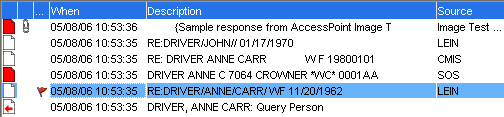
The Message List, Manage Messages and Case views display a table that contains a history of messages sent and received in Talon.
The message history displays the following information:
|
Status |
Displays a graphic to indicate if a message was sent from
Talon |
|
... or Flags |
Displays icons indicating if an image is present or if a highlight has been performed on the message. |
|
When |
Date and time a message was sent or received. |
|
Description |
A brief description of the contents of the message. |
|
Source |
Where the information came from. |
Actions
|
Change the Message History Size |
You can resize the viewing area of the table or message details by dragging the separator up or down. |
|
Delete Messages |
Select a message or messages, and use the Delete key to remove messages you do not wish to view again. |
|
Print Messages |
Click Print from the File menu to print the contents of the Activity window. You can also press Ctrl+P to print your messages directly to your default printer or Alt+P to select your print options. In addition, you can select a message or messages from the Message History, right-click and select Quick Print. You can also print just a selection of a message by selecting the text you wish to print, and using your preferred print method. See Printing for additional printing options. |
|
Copy Messages |
Select a message or message and either type Ctrl+C. Alternatively, you can right-click and select Copy. |
|
Open Message in a Separate Window |
Select a message, and either press the Open Detail button or right-click and select Open Detail. |
|
Quick Copy Message to Administrator |
To quickly copy the contents of a message into the Admin Message form, select the message and type Ctrl+M or right-click the message and select Quick Copy to Admin Msg. |
|
Quick Copy Message to Blank Form |
To quickly copy the contents of a message into the Blank form, select the message and type Ctrl+B or right-click the message and select Quick Copy to Blank Form. |
|
Select Multiple Messages |
Use the Shift and Ctrl keys in combination with the mouse to select multiple messages. Once selected, you can either print or delete the selected messages. |
|
Scroll through Messages |
A scroll bar is displayed if there are more messages than can fit in the list area. New messages are displayed at the end of the list. You can also use the Arrow keys to scroll through the list of messages. To view a message when using the arrow keys to scroll through them, press the Space key to select the message. |
|
Moving between the Message List and the Message View |
You can move the cursor between the message list to the message view and back by pressing the Tab and Shift-Tab keys. Press Tab to move from the Message List to the Message View. Press Shift-Tab to move to the Message View from the Message List. |
|
Close all Open Forms |
Press Shift+Esc to close all open form windows. |
|
Switch between all open Talon windows. |
Press Ctrl+F6 to switch between open windows, including the Message window and any open forms. |
|
Launch the last form |
Press Ctrl+L to display the last form viewed. |
Message Details
In all the views the Message History is available, selecting an item in the list will display the details of the message in the area below the table.
|
TIP |
You can resize the viewing area of the table or message details by dragging the separator up or down. |
Actions
|
Copy the Message |
Select text in the message view area with the mouse. Use Ctrl+C, or right-click and select Copy, to copy the text for use in another program. |
|
Scroll through the Message Details |
A scroll bar is displayed if the message contents are larger than what can fit in the message view area. |
 , received and unread
  , or received
and read
, or received
and read  . Clicking
on an unread message will change the icon to the read state.
. Clicking
on an unread message will change the icon to the read state.