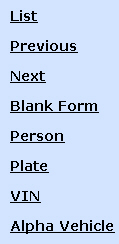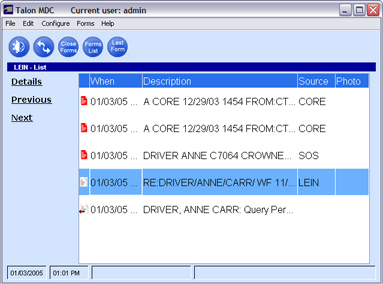
When a request for information is made, both the request and response are displayed within the main Talon window. In Talon MDC, messages can be viewed in two different ways - List and Detail views. The following describes the features of each view.
The List View displays a summarized list of all the requests and responses for the current user. This view displays just a history of the messages and allows you can select a specific item to view the details.
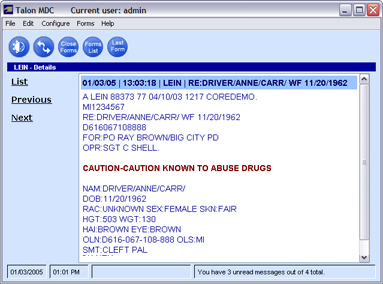
The Detail View displays the details of the selected message. Within this view you can use the Next and Previous links to move between messages.
Menu Bar

The menu bar provides access to all Talon features.
Tool Bar

The Talon toolbar provides shortcuts to common functions.
|
|
Toggle Day/Night mode |
|
|
Who's Where Messaging |
|
|
Close all open forms |
|
|
Display list of forms |
|
|
Display the last form used |
Button Bar
|
|
The button bar is used to display buttons you configured to launch frequently used form. By default, only List/Details, Previous and Next will appear in the button bar.
To add buttons, select Configure Function Buttons from the Configure menu. If you have function buttons defined, you can access these forms by either clicking the button on the button bar, or pressing the associated function key on the keyboard. |
Status Bar

The status bar displays the current date and time and the number of unread and total messages.
Message History
The List view displays a table that contains a history of messages sent and received in Talon. Please see the Message History topic for more details.