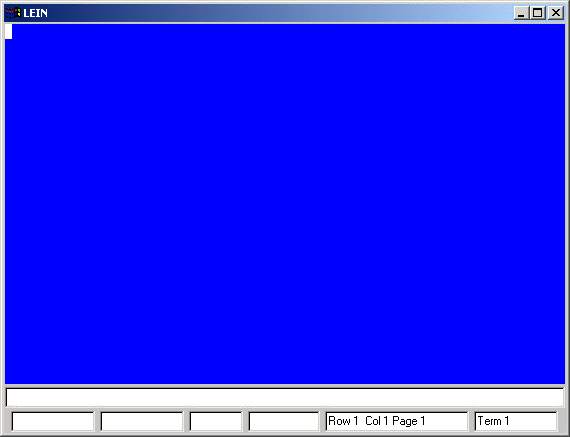
Talon includes a terminal emulator to access LEIN applications and forms that are not available through the provided forms. To display the emulator, select Emulator from the View menu.
Transmit Modes
The Emulator provides two ways to transmit data to LEIN. Which method you should use depends on how you are using the emulator and where you want your response displayed.
|
Transmit Keystroke |
Transmit Behavior |
|
F12 or Numeric-plus |
When you use F12 or + on the numeric pad to transmit data, the responses to the transmission are sent only to the Talon Messages window. The emulator view will not display the response to the LEIN message. This transmit method should be used if you do not wish the data in the emulator view to be overwritten with the response. You might use this method if you wish to reuse the emulator to request data from the same form. |
|
Shift+Numeric-plus |
When you use Shift+Numeric-plus (+ key on the numeric pad) to transmit data, the responses to the transmission are sent to both the Talon Messages window and the emulator window. This transmit method is the only way to change the data that is currently displayed in the emulator window. |
Emulator Keystrokes
|
Esc+W |
Enables Forms Mode. |
|
Esc+Q |
Disables Forms Mode. |
Increasing Rows
By default, the emulator only displays 24 lines on the screen. If you will be using the emulator to view screens that have more than 24 rows, the following needs to be added to the [Env 2] section in the configuration file:
KBDRows = # of rows
ScrollBars = True
Changing the Look
The emulator view displays its contents using a terminal look. If you wish to display the emulator window with a graphical look and feel, the following needs to be added to the [Env 2] section in the configuration file:
TextFields = True
|
|