The Edit Highlights window
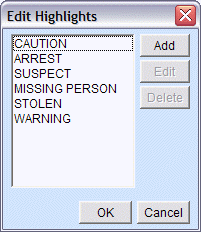
Selecting Edit Highlights from the Configure menu will allow you to select which words and phrases Talon should emphasize in received messages.
Highlights List
When you first select Edit Highlights, a list of your configured highlights is displayed. From this window you can:
Add a new highlight
Edit an existing highlight
Delete a configured highlight
To add a new highlight, click [Add]. To modify or delete an existing highlight, select the appropriate search phrase and click [Modify] or [Delete].
|
The Edit Highlights window |
|
Edit Highlight
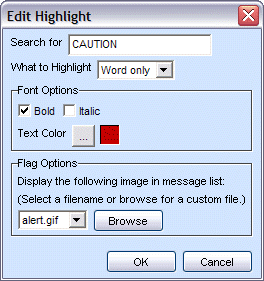
The Edit Highlight dialog is displayed when you want to create a new or modify an existing highlight. This dialog allows you to configure the search phrase and how you wish it to be emphasized.
|
The Edit Highlight dialog |
|
Search Phrase
At the Search for prompt, enter a single word or a phrase of words you wish to be highlighted.
Highlight Options
The following options are available to configure how you wish the search phrase to be displayed.
|
Bold |
Selects whether the text should be bold. |
|
Italic |
Select whether the text should be italicized. |
|
Text Color |
Select the color to highlight the text. |
|
What to Highlight |
Word only - only highlights the search phrase. Full line - highlights the entire line where the search phrase appears. |
|
Flag Options |
Displays an included or custom image when a message includes the search phrase. |
Click [OK] on both windows to save your changes. The new highlights will take effect the next time you receive a message.