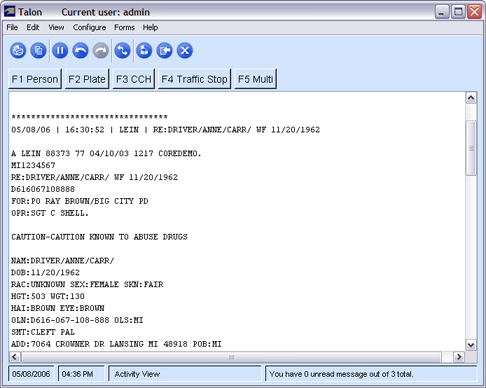
The Activity Window view displays all messages in a single window. Through this view you can launch forms, scroll through all the activities, pause activity, view the most current responses, or a history of responses. You can also print or copy data from this window.
Activity
The main section of the Activity Window displays all messages sent and received during the current users’ Talon session.
Actions
|
Copy All Messages |
Click Copy from the Edit menu to copy all the contents in the Activity Window for use in another program. |
|
Copy Selected Messages |
Select text in the activity area with the mouse. Click Copy from the Edit menu, use Ctrl+C or right-click to copy the text for use in another program. |
|
Print All Messages |
Click Print from the File menu to print the contents of the Activity window. You can also press Ctrl+P to print your messages directly to your default printer or Alt+P to select your print options. You can also print just a selection of a message by selecting the text you wish to print, and using your preferred print method. See Printing for additional printing options. |
|
Scroll through the Message Activities |
A scroll bar is displayed if the activity data is larger than what can fit in the activity area. New messages are displayed at the end of the activity area. TIP: Be sure to check the Back and Previous buttons on the top of the window. You may need to press the Next page and/or Play button to see your most recent messages. |
|
Clear All Messages |
Click Clear from the Edit menu to clear the contents in the Activity Window. If messages are also displayed in multiple Response Displays, select each display and click Clear from the Edit menu. Alternatively, you can press Ctrl+K to clear the contents. |
|
Close all Open Forms |
Press Shift+Esc to close all open form windows. |
|
Switch between all open Talon windows. |
Press Ctrl+F6 to switch between open Talon windows, including the LEIN Message window and any open forms. |
|
Launch the last form displayed. |
Press Ctrl+L to display the last form viewed. |
|
NOTE |
Images cannot be displayed in Activity View. If you need to view images, please switch to one of the other Talon views. |
Activity Buttons

Pause/Resume Activity
Click
 to prevent messages from being displayed in the Activity
Window. Click
to prevent messages from being displayed in the Activity
Window. Click  to continue displaying
messages.
to continue displaying
messages.
Previous Page
Click  to view the previous page's messages. This
button will only be available if a previous page exists.
to view the previous page's messages. This
button will only be available if a previous page exists.
Next Page
Click  to view the next page's messages. This
button will only be available if a next page exists.
to view the next page's messages. This
button will only be available if a next page exists.